Installing Isaac Sim, Pegasus Simulator extension, and Running Standalone App
This tutorial is built upon Pegasus Simulator documentation, repurposed for this project. This tutorial assumes you have set up find-my-kitten repository locally, as well as ROS2 and QGroundControl.
Installing Isaac Sim
Run the following commands in terminal to install Isaac Sim:
# Go to the home directory
cd ~

# Create a new directory to store the Isaac Sim installation
mkdir -p isaacsim
cd isaacsim

# Download the zip file containing the Isaac Sim installation
wget https://download.isaacsim.omniverse.nvidia.com/isaac-sim-standalone-5.1.0-linux-x86_64.zip

# Unzip the file
unzip isaac-sim-standalone-5.1.0-linux-x86_64.zip

# Run the post-installation scripts, no need to select any options besides default
./post_install.sh
./isaac-sim.selector.sh

# Delete the zip file
rm isaac-sim-standalone-5.1.0-linux-x86_64.zip
Done :+1:
Setting environment variables
Add the following to your ~/.bashrc file.
# ---------------------------
# ISAAC SIM SETUP
# ---------------------------
# Isaac Sim root directory
export ISAACSIM_PATH="${HOME}/isaacsim"
# Isaac Sim python executable
export ISAACSIM_PYTHON="${ISAACSIM_PATH}/python.sh"
# Isaac Sim app
export ISAACSIM="${ISAACSIM_PATH}/isaac-sim.sh"

# Define an auxiliary function to launch Isaac Sim or run scripts with Isaac Sim's python
# This is done to avoid conflicts between ROS 2 and Isaac Sim's Python environment
isaac_run() {

    # ------------------
    # === VALIDATION ===
    # ------------------
    if [ ! -x "$ISAACSIM_PYTHON" ]; then
        echo "❌ IsaacSim python.sh not found at: $ISAACSIM_PYTHON"
        return 1
    fi
    if [ ! -x "$ISAACSIM" ]; then
        echo "❌ IsaacSim launcher not found at: $ISAACSIM"
        return 1
    fi

    # -------------------------
    # === CLEAN ENVIRONMENT ===
    # -------------------------
    # Unset ROS 2 environment variables to avoid conflicts with Isaac's Python 3.11
    unset ROS_VERSION ROS_PYTHON_VERSION ROS_DISTRO AMENT_PREFIX_PATH COLCON_PREFIX_PATH PYTHONPATH CMAKE_PREFIX_PATH

    # Remove ROS 2 paths from LD_LIBRARY_PATH if present
    local ros_paths=("/opt/ros/humble" "/opt/ros/jazzy" "/opt/ros/iron")
    for ros_path in "${ros_paths[@]}"; do
        export LD_LIBRARY_PATH=$(echo "$LD_LIBRARY_PATH" | tr ':' '\n' | grep -v "^${ros_path}" | paste -sd':' -)
    done

    # -----------------------------
    # === UBUNTU VERSION CHECK ===
    # -----------------------------

    if [ -f /etc/os-release ]; then
        UBUNTU_VERSION=$(grep "^VERSION_ID=" /etc/os-release | cut -d'"' -f2)
    fi

    # If Ubuntu 24.04 -> use the Isaac Sim internal ROS2 Jazzy (ROS2 Jazzy bridge)
    if [[ "$UBUNTU_VERSION" == "24.04" ]]; then
        export ROS_DISTRO=jazzy
        export RMW_IMPLEMENTATION=rmw_fastrtps_cpp
        export LD_LIBRARY_PATH="${LD_LIBRARY_PATH}:${ISAACSIM_PATH}/exts/isaacsim.ros2.bridge/jazzy/lib"
        echo "🧩 Detected Ubuntu 24.04 -> Using ROS_DISTRO=jazzy"
    # If Ubuntu 22.04 -> use the Isaac Sim internal ROS2 Humble (ROS2 Humble bridge)
    else
        export ROS_DISTRO=humble
        export RMW_IMPLEMENTATION=rmw_fastrtps_cpp
        export LD_LIBRARY_PATH="${LD_LIBRARY_PATH}:${ISAACSIM_PATH}/exts/isaacsim.ros2.bridge/humble/lib"
        echo "🧩 Detected Ubuntu ${UBUNTU_VERSION:-unknown} -> Using ROS_DISTRO=humble"
    fi

    # ---------------------
    # === RUN ISAAC SIM ===
    # ---------------------
    if [ $# -eq 0 ]; then
        # No args → Launch full Isaac Sim GUI
        echo "🧠 Launching Isaac Sim GUI..."
        "${ISAACSIM}"

    elif [[ "$1" == --* ]]; then
        # Arguments start with "--" → pass them to Isaac Sim executable
        echo "⚙️  Launching Isaac Sim with options: $*"
        "${ISAACSIM}" "$@"

    elif [ -f "$1" ]; then
        # First argument is a Python file → run with Isaac Sim's Python
        local SCRIPT_PATH="$1"
        shift
        echo "🚀 Running Python script with Isaac Sim: $SCRIPT_PATH"
        "${ISAACSIM_PYTHON}" "$SCRIPT_PATH" "$@"

    else
        # Unrecognized input
        echo "❌ Unknown argument or file not found: '$1'"
        echo "Usage:"
        echo "  isaac_run                 → launch GUI"
        echo "  isaac_run my_script.py    → run script with IsaacSim Python"
        echo "  isaac_run --headless ...  → launch IsaacSim with CLI flags"
        return 1
    fi
}
Test the current environment by running isaac_run in terminal. This should open a new window running Isaac Sim.
Test that the Isaac Sim python interpreter path variable is correct by running in the terminal:</br> $ISAACSIM_PYTHON ${ISAACSIM_PATH}/standalone_examples/api/isaacsim.core.api/add_cubes.py</br>
Installing project dependencies
For this repository, do not manually install Python dependencies one by one. Use uv to sync the environment from the project configuration:
cd find-my-kitten
uv sync
source .venv/bin/activate
Installing Pegasus Simulator extension
- Launch Isaac Sim with
isaac_runin terminal. - Open the Window->extensions on the top menubar inside Isaac Sim.
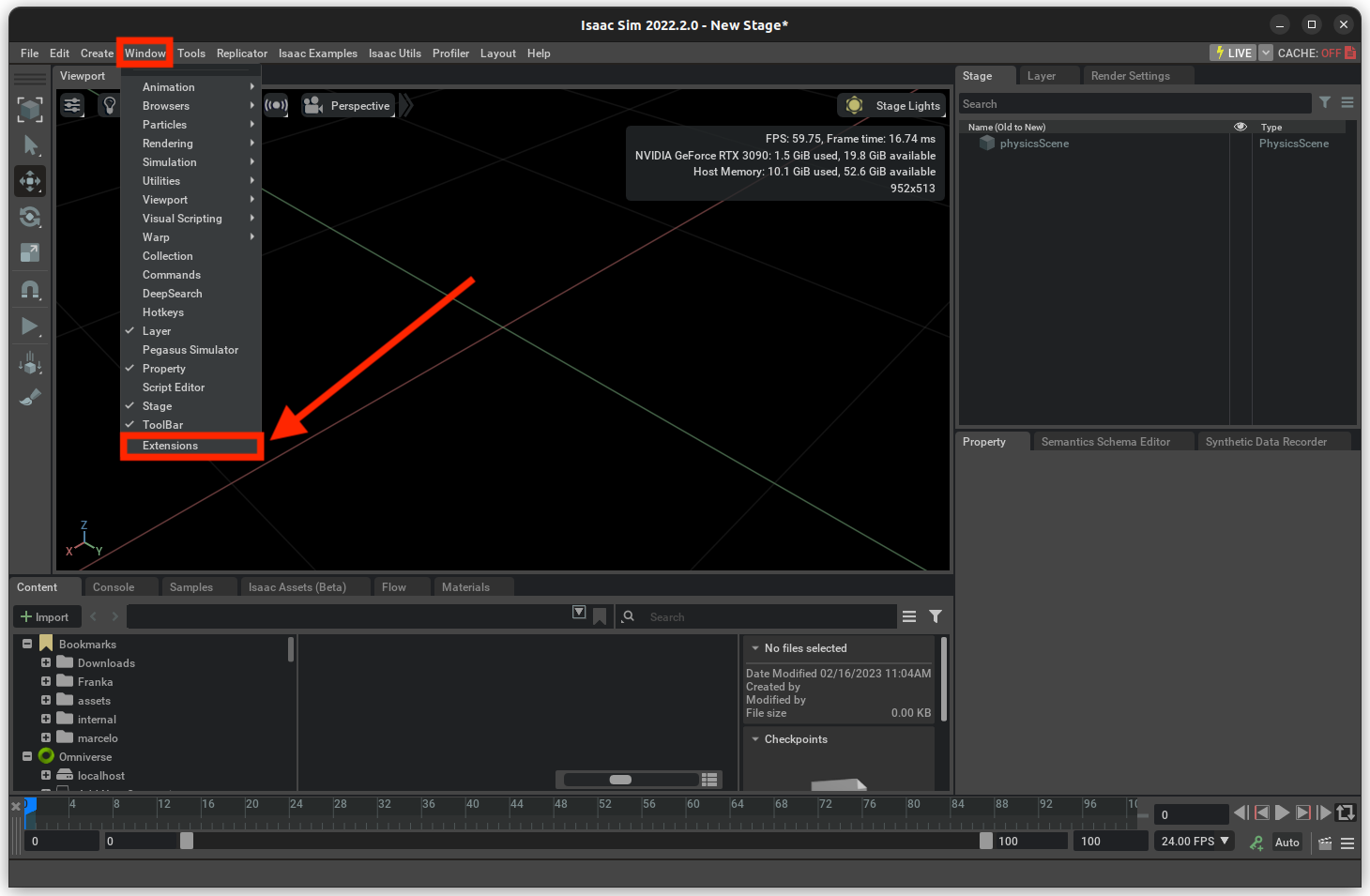
- On the Extensions manager menu, we can enable or disable extensions. By pressing the settings button, we can add a path to the Pegasus-Simulator repository.
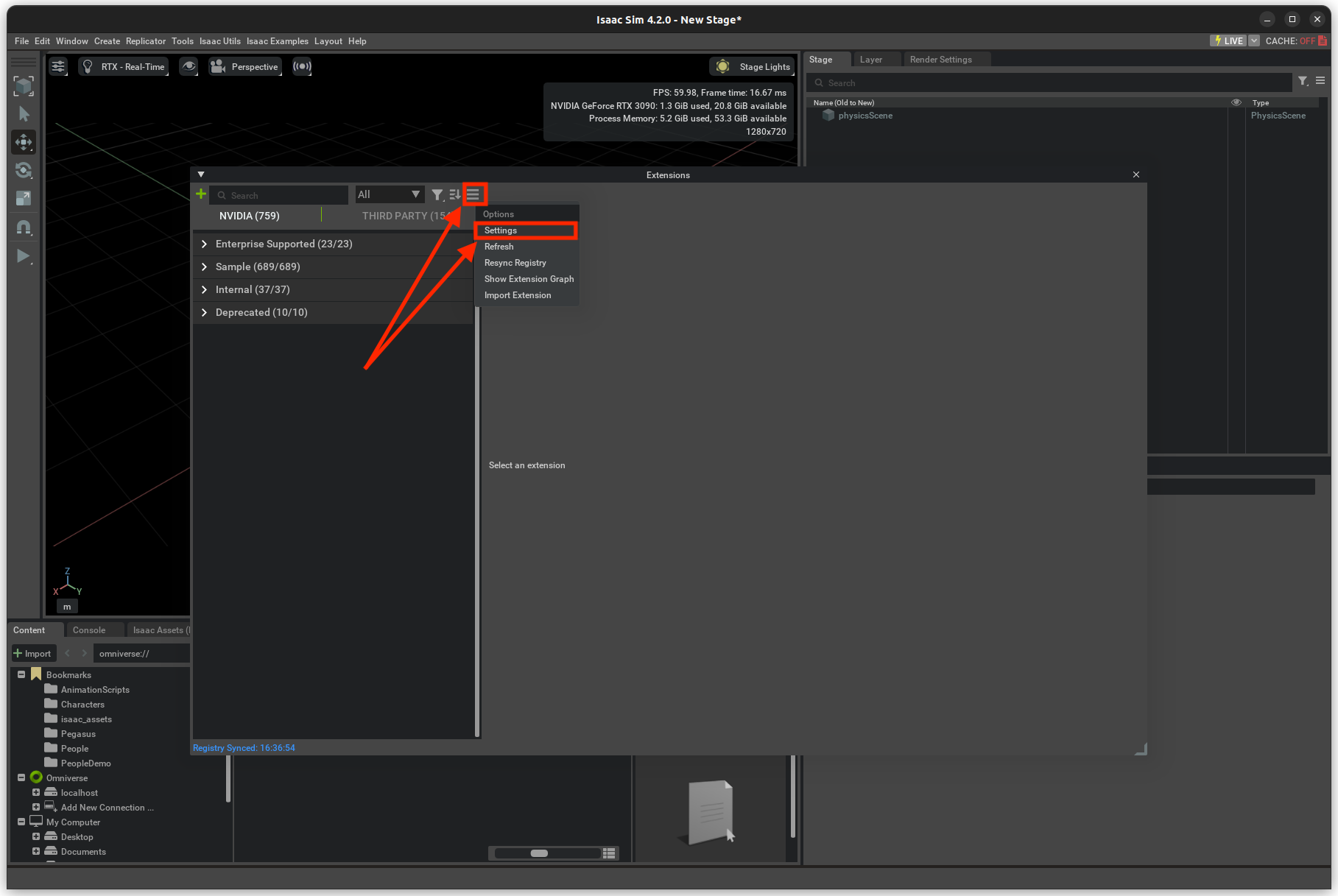
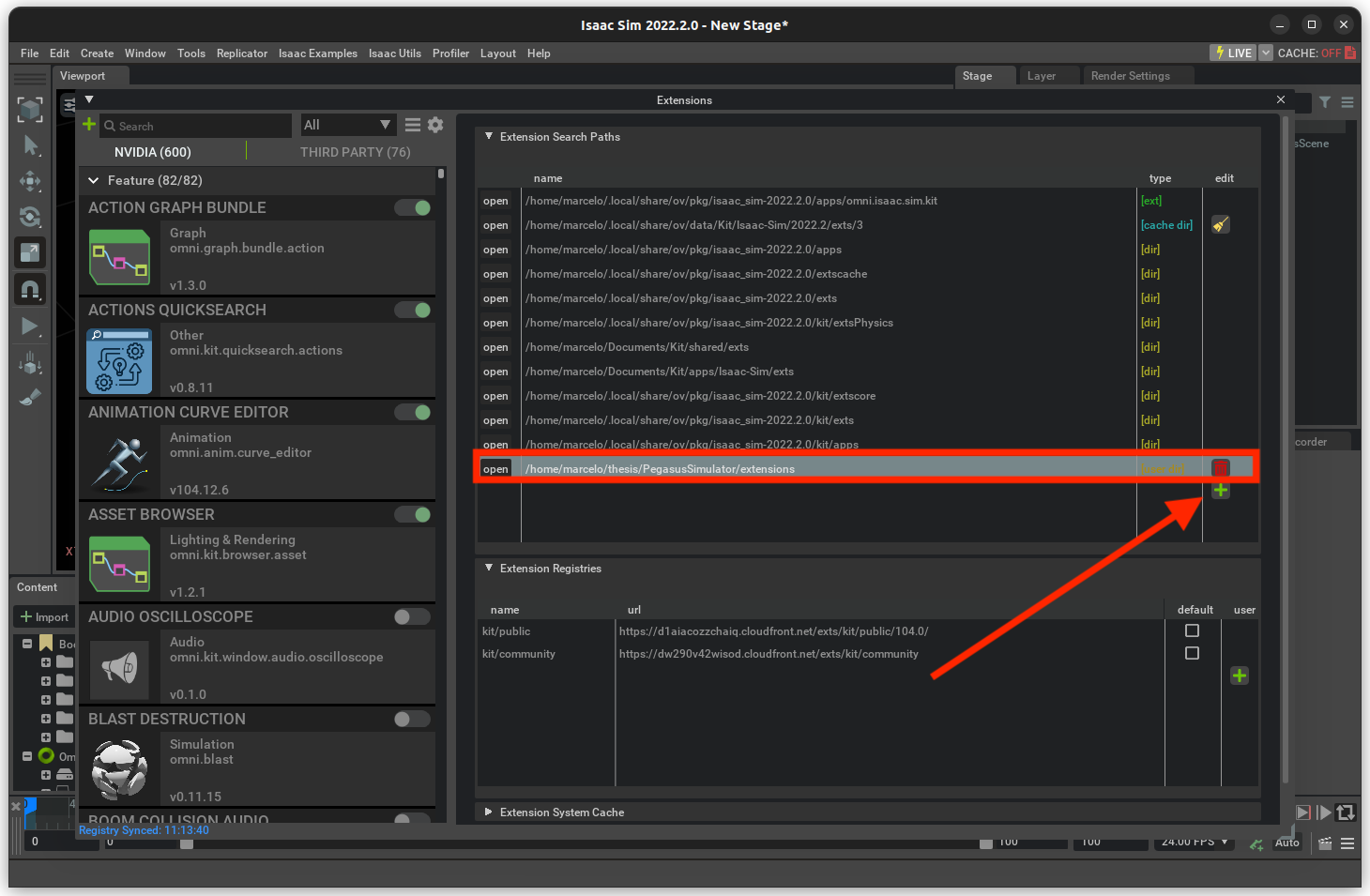
- The path inserted should be the path to the repository followed by /extensions.
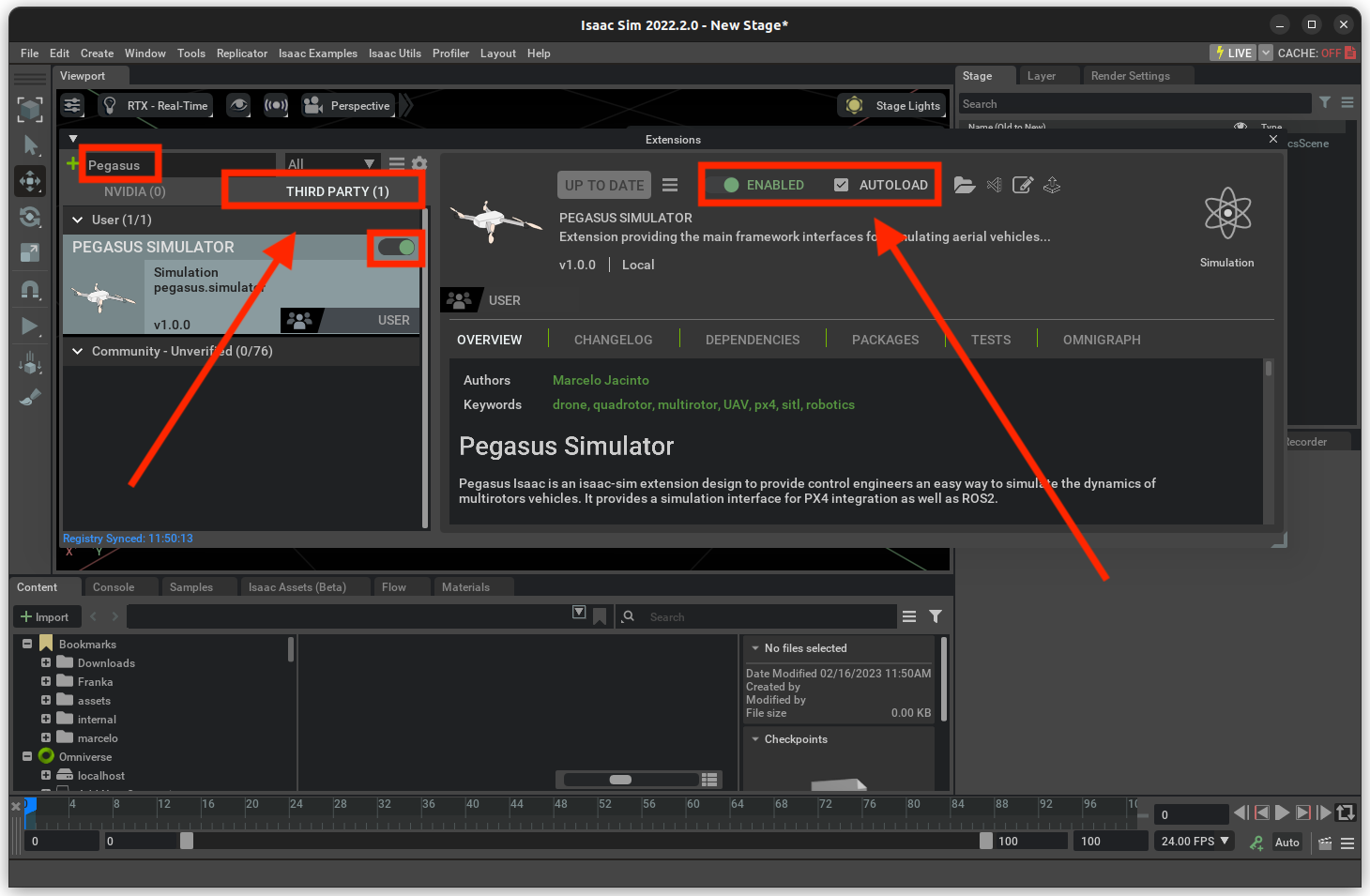
- After adding the path to the extension, we can enable the Pegasus Simulator extension on the third-party tab. Enable AUTOLOAD.
Installing the extension as a library
In order to be able to use the Pegasus Simulator API from python scripts and standalone apps, we must install this extension as a pip python module for the built-in ISAACSIM_PYTHON to recognize. For that, run:
# Go to the repository of the pegasus simulator
cd PegasusSimulator

# Go into the extensions directory
cd extensions

# Run the pip command using the built-in python interpreter
$ISAACSIM_PYTHON -m pip install --editable pegasus.simulator
Building PX4-Autopilot
PX4-Autopilot is included in this repository at simulation/PX4-Autopilot.
After entering that directory, build SITL with:
cd find-my-kitten/simulation/PX4-Autopilot
make px4_sitl
Setting PX4 Path
Running a simulation with Isaac Sim and Pegasus Simulator requires the path for PX4-Autopilot to be set in Pegasus Simulator configurations.
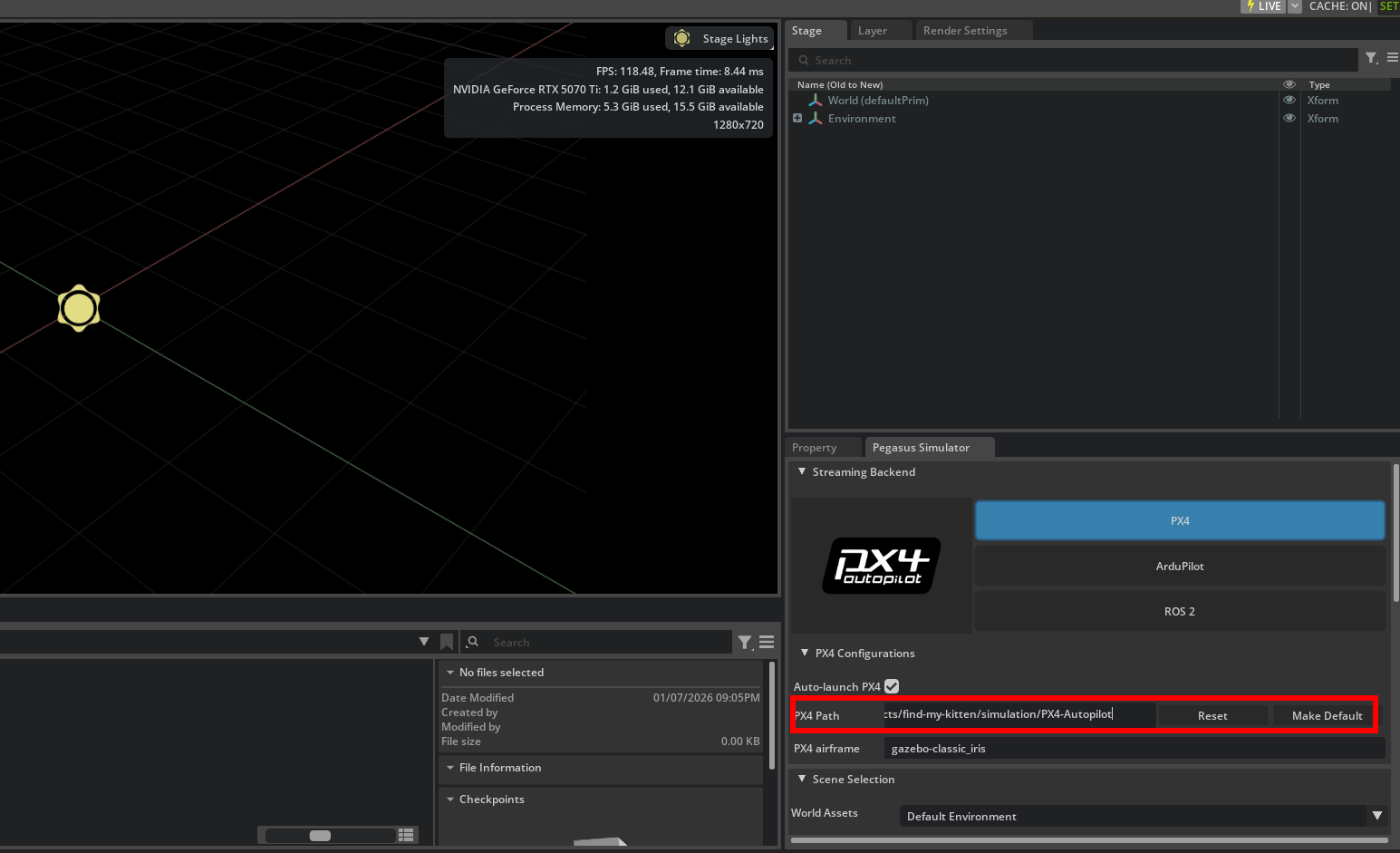
The input field can be found in the bottom right of Isaac Sim in the Pegasus Simulator tab, under PX4 Configurations.
Set the value to the path of your PX4-Autopilot directory, for our purposes we can use the directory in this repository’s simulation directory:
find-my-kitten/simulation/PX4-Autopilot
Press Make Default next to the path input field.